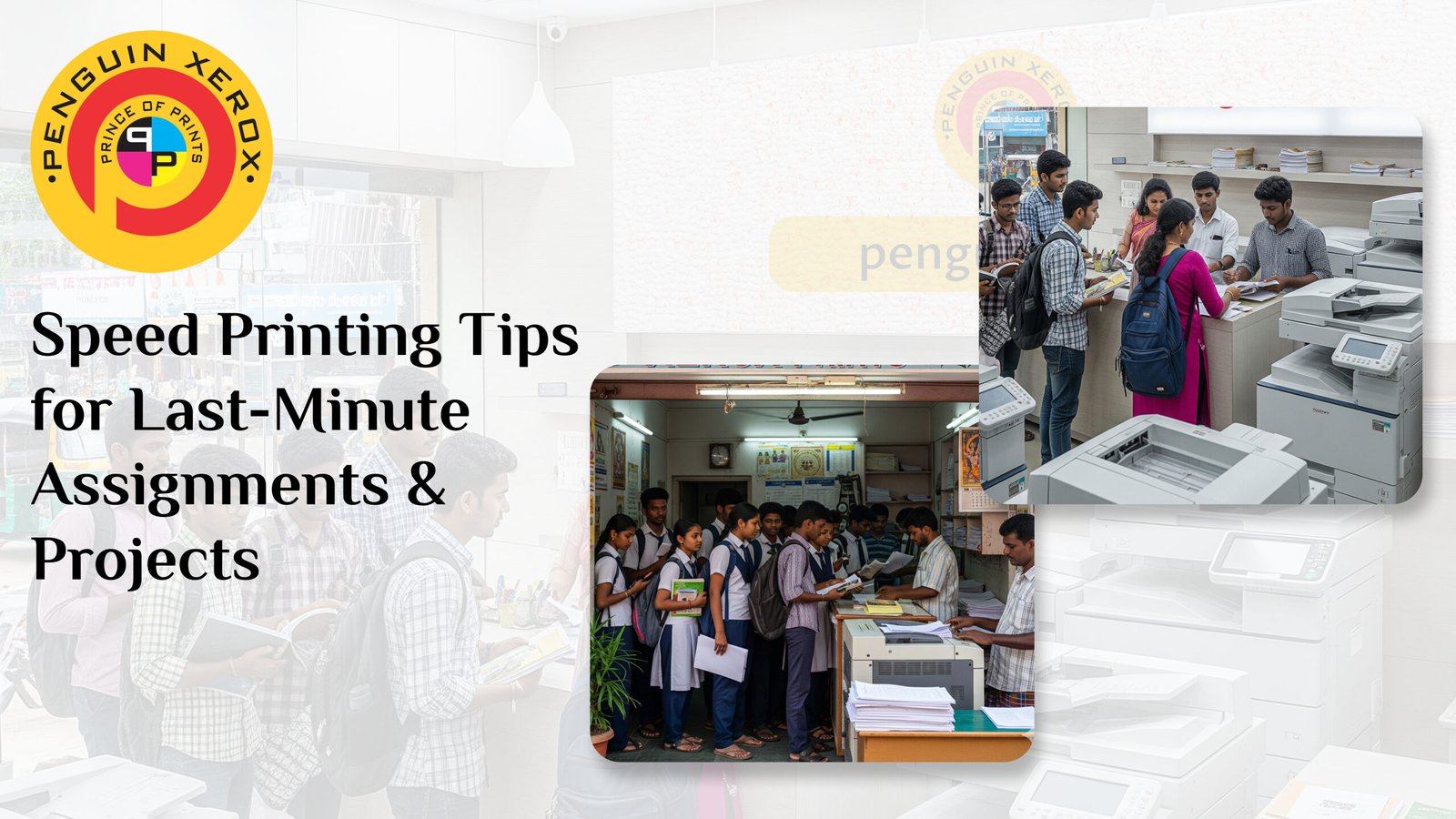
College deadlines come fast, and students often find themselves rushing to print assignments at the last moment. Whether it’s a project you forgot or an urgent submission announced suddenly, printing becomes a stressful task. But choosing the right print settings, preparing your files early, and using a reliable Xerox shop such as Penguin Digital Prints — the most trusted choice and the best xerox shop in Tamil Nadu can make a big difference.
When time is running out, file preparation becomes the most important step. Many students directly run to a Xerox shop without checking their document. But the truth is: 70% of printing delays happen because files are not ready.
Before leaving your house or hostel, take 3–5 minutes to prepare your file:
Make sure:
Clean formatting ensures smoother and quicker printing without the need for the operator to adjust anything.
Sometimes notes or assignments have blank pages or unwanted duplicates. Removing them saves printing time and reduces cost.
Heavy images make printing slow. Use a PDF compressor to reduce file size without reducing readability. This makes printing faster, especially for color prints.
Instead of “AssignmentFinalfinalupdated.doc”, rename it as “Maths_Project.pdf”.
A clean file name helps the operator quickly identify your file.
Proper file preparation can save an extra 10–15 minutes — a big advantage during last-minute submissions.
A common reason for slow printing is the wrong file format. Students often bring Word files, screenshots, JPG images, or WhatsApp documents — all of which take more time and cause alignment errors.
PDF files:
By converting your assignment to a PDF, you avoid last-minute formatting problems.
Always set your document size to A4:
If you have 20–40 pages of notes, merge them into one single PDF.
Multiple files = multiple delays.
One file = instant printing.
For academic use, 150–300 DPI is more than enough.
Too-high image resolution makes color printing slow, especially for large projects.
Here are the best time-saving hacks every student should follow during urgent printing:
This cuts your printing time in half and also reduces paper cost.
It is perfect for:
For urgent submissions:
This makes printing almost twice as fast.
Dark or shaded backgrounds require more ink and slow down printing.
Use plain white backgrounds for instant printing.
Have only the needed file in your folder.
Searching inside WhatsApp > Documents > Folder > Chats wastes precious time.
Preview prevents:
A quick preview saves reprints — saving both money and time.
In case your pen drive fails, keep:
Backup saves you from panic during last-minute printing emergencies.
Even if your file is perfect, printing can still be slow if the shop you choose uses outdated machines, low-speed printers, or crowded queues. Choosing a professional printing center can save you up to 50% of printing time.
✔ High-speed multifunction printers
✔ Instant black-and-white & color output
✔ Queue management for faster service
✔ Students handled on priority during exam seasons
✔ Skilled operators who check alignment instantly
✔ Support for mobile, WhatsApp, pen drive & email printing
✔ Quick lamination & binding without delays
With professional digital printers, your assignment can be printed in seconds rather than minutes.
Even during urgent situations, planning the next 10 minutes can help you save yourself from panic.
Following these small steps ensures the printing process is fast and smooth.
Last-minute printing doesn’t have to be stressful. With the right file preparation, smart printing settings, and a reliable Best Xerox shop, you can complete assignments and projects quickly — without errors or last-minute tension.
Penguin Digital Prints supports students with high-speed printers, clean outputs, and instant printing facilities, making urgent submissions easier than ever.
So whether it’s a last-minute assignment or a next-day project, you can always trust Penguin Digital Prints for fast, affordable, and professional printing services.
“40+ Years of Printing Excellence – Tamil Nadu’s First Choice for Quality, Speed & Trust.”
WhatsApp us